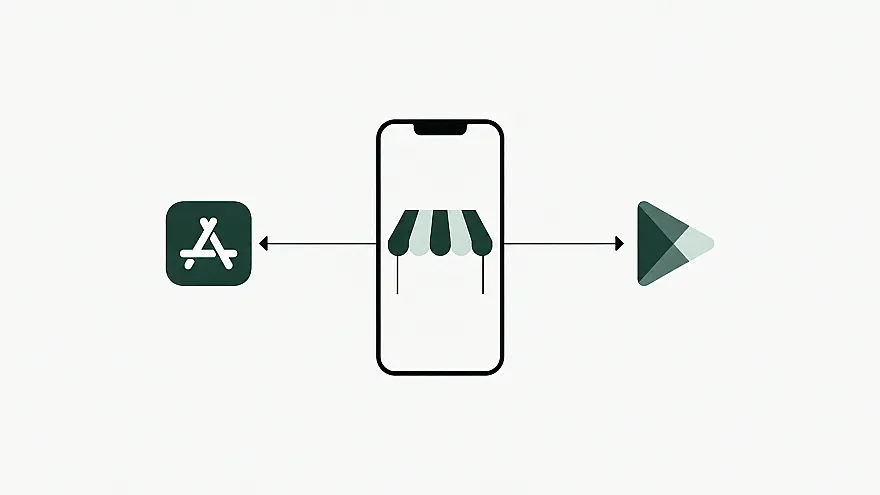
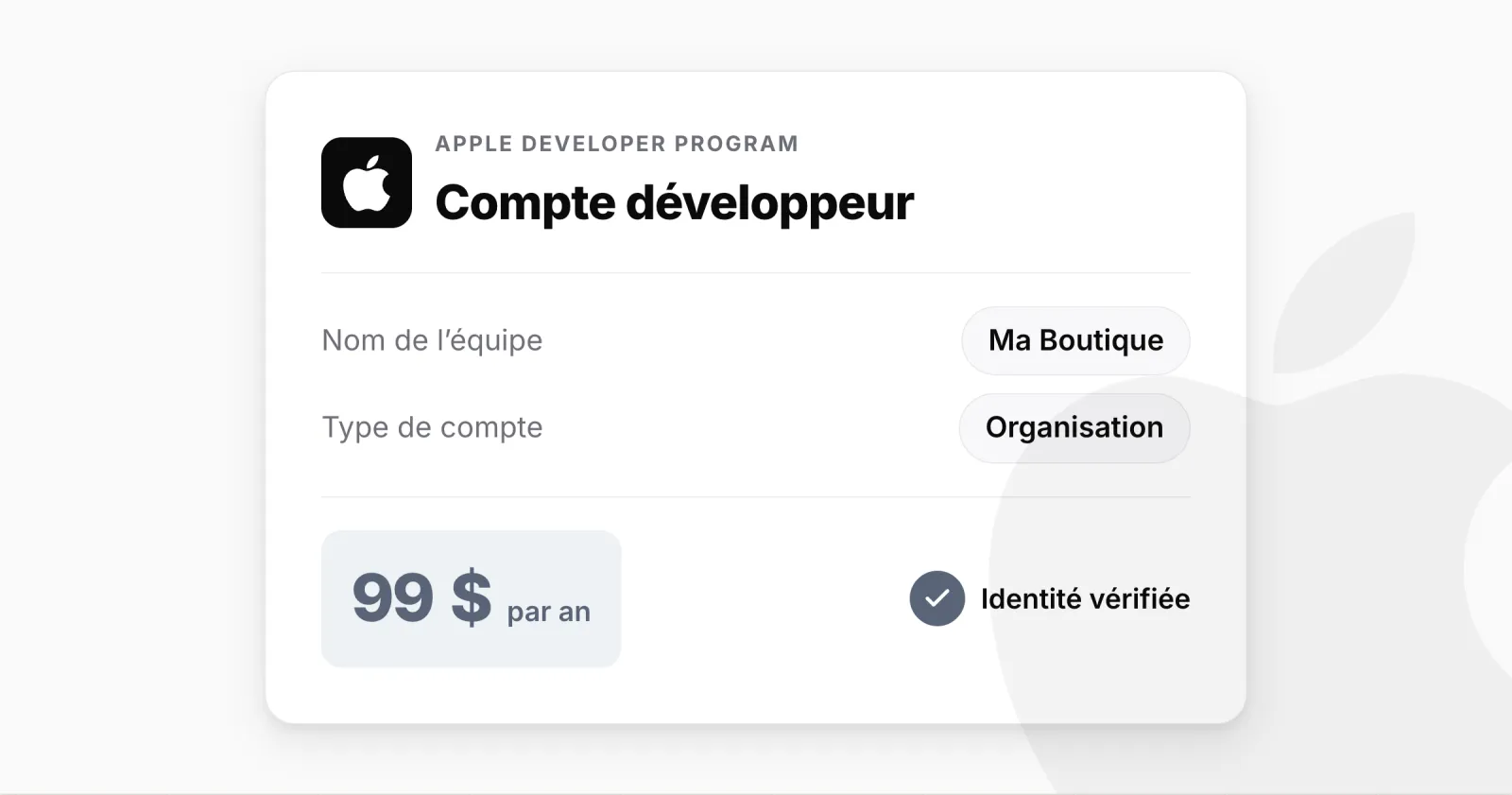
To publish an app on the App Store, you need to join the Apple Developer Program. Membership costs 99 USD a year, shown in your local currency when you enrol. For a company, Apple also asks for a D-U-N-S number: if you already have one, the account opens within a few days; if it has to be created, allow about a week and a half more.
Apple Account and Apple Developer account: the difference
Your Apple Account, the one on your iPhone, is free. It identifies you, but it does not let you publish apps. To publish, that account has to join the Apple Developer Program, an annual membership. This membership is what people usually call an "Apple Developer account".
When you enrol, Apple asks how you are joining:
Individual: the app is published under your own name. This is also the right choice for a sole trader, because Apple only accepts registered companies as organisations.
Organisation: the app is published under your company's name. This is the usual choice for an online store run by a limited company.
What Apple requires for an organisation account
A legal entity that can sign a contract with Apple. Trading names, DBAs and branches are not accepted.
A D-U-N-S number registered to that exact legal entity.
The legal authority to bind the company: owner, founder, executive, or an employee given that authority by one of them. If you are not the owner, Apple may ask for a reference who can confirm it.
A work email address on the company's domain, such as contact@your-store.com.
A public, working website on that same domain. A social media page or a site under construction is not enough.
An Apple Account protected by two-factor authentication.
Apple may also contact you or ask for company documents to verify this information.
How much it costs and how long it takes
Cost: 99 USD a year, shown in your local currency when you enrol. Membership renews every year and has no limit on the number of apps you publish.
Timing: a few days if your D-U-N-S number already exists. Otherwise, add up to 5 business days to receive it from Dun & Bradstreet, then up to 2 business days before Apple can see it.
Opening the account, step by step
1. Turn on two-factor authentication
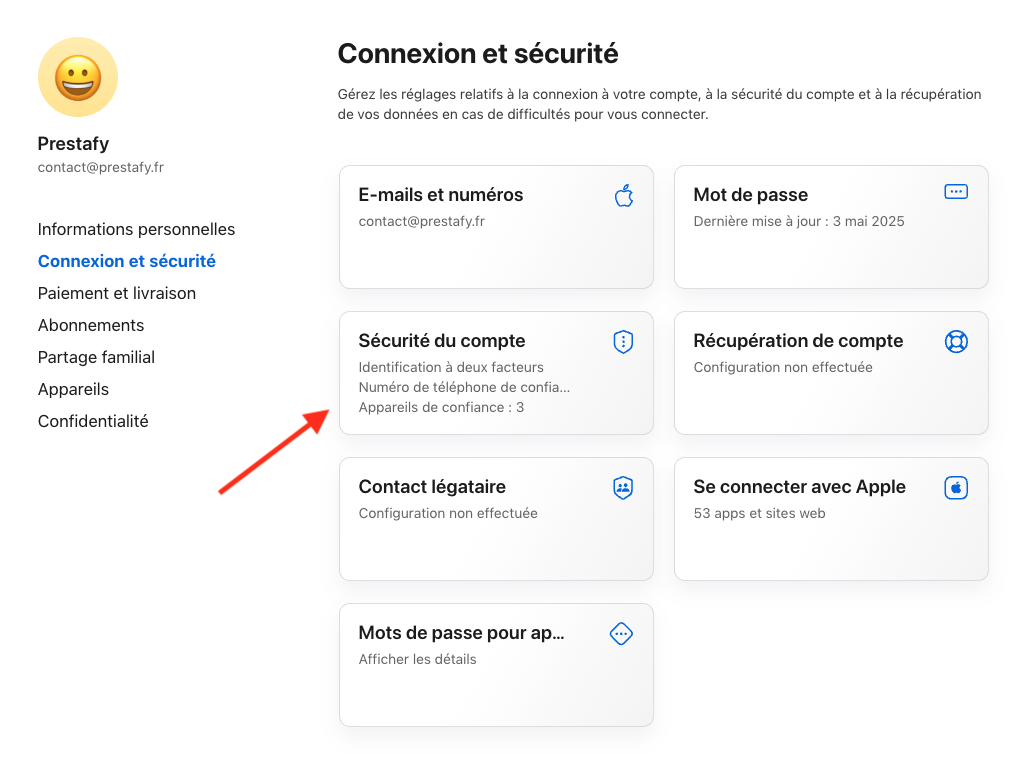
Sign in at account.apple.com with the Apple Account the company will use, open Sign-In and Security and turn on two-factor authentication. Apple will not let you enrol without it.
Use an Apple Account dedicated to the company, such as apple@your-store.com, rather than a director's personal account. It will become the Account Holder, and that role can later only be passed to someone with the authority to bind the company.
2. Check your D-U-N-S number
Look up your company in Apple's D-U-N-S lookup tool. Many companies already have a number without ever having asked for one. If yours is not listed, the same tool lets you request one from Dun & Bradstreet, free of charge.
If Apple shows "Your organization is not listed as a legal entity", your Dun & Bradstreet record does not recognise you as a company. Email Dun & Bradstreet with your registration documents or, if you are a sole trader, enrol as an individual.
3. Start the enrolment
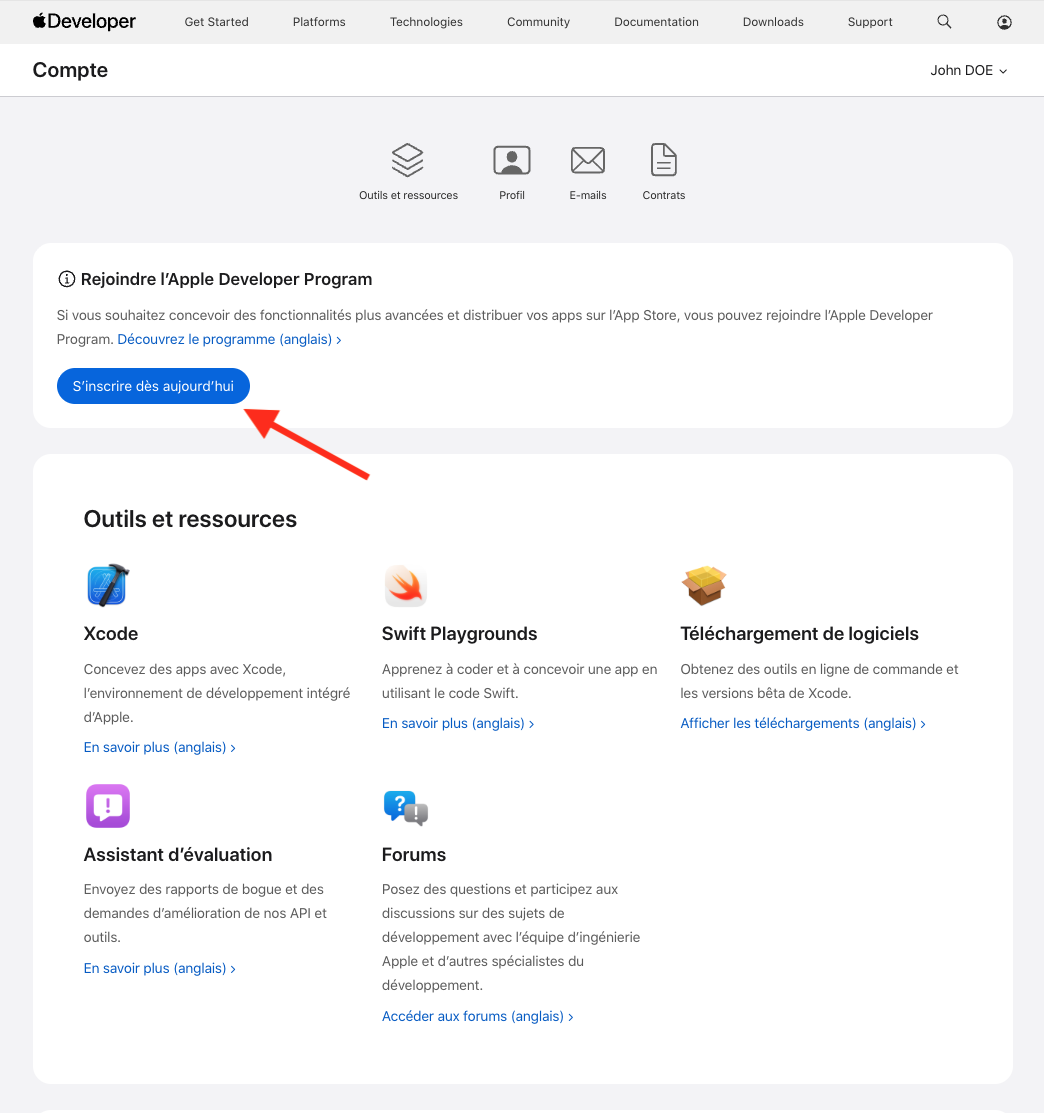
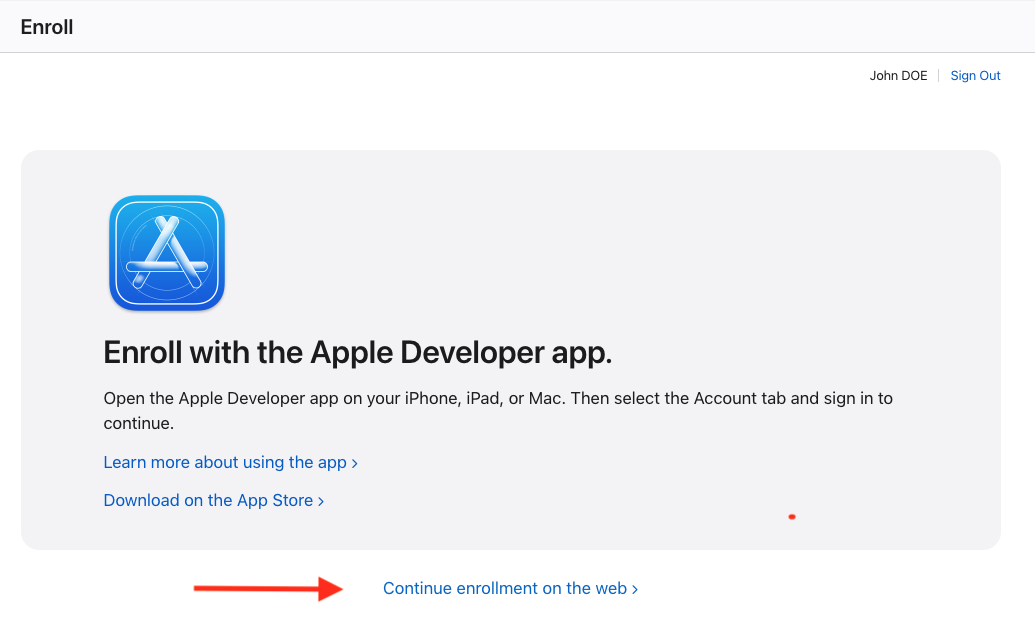
Sign in at developer.apple.com/account and click "Enroll today". Apple also offers enrolment in its Apple Developer app on iPhone, iPad or Mac. Both lead to the same result; entering company details is often easier on a computer.
4. Confirm your personal details
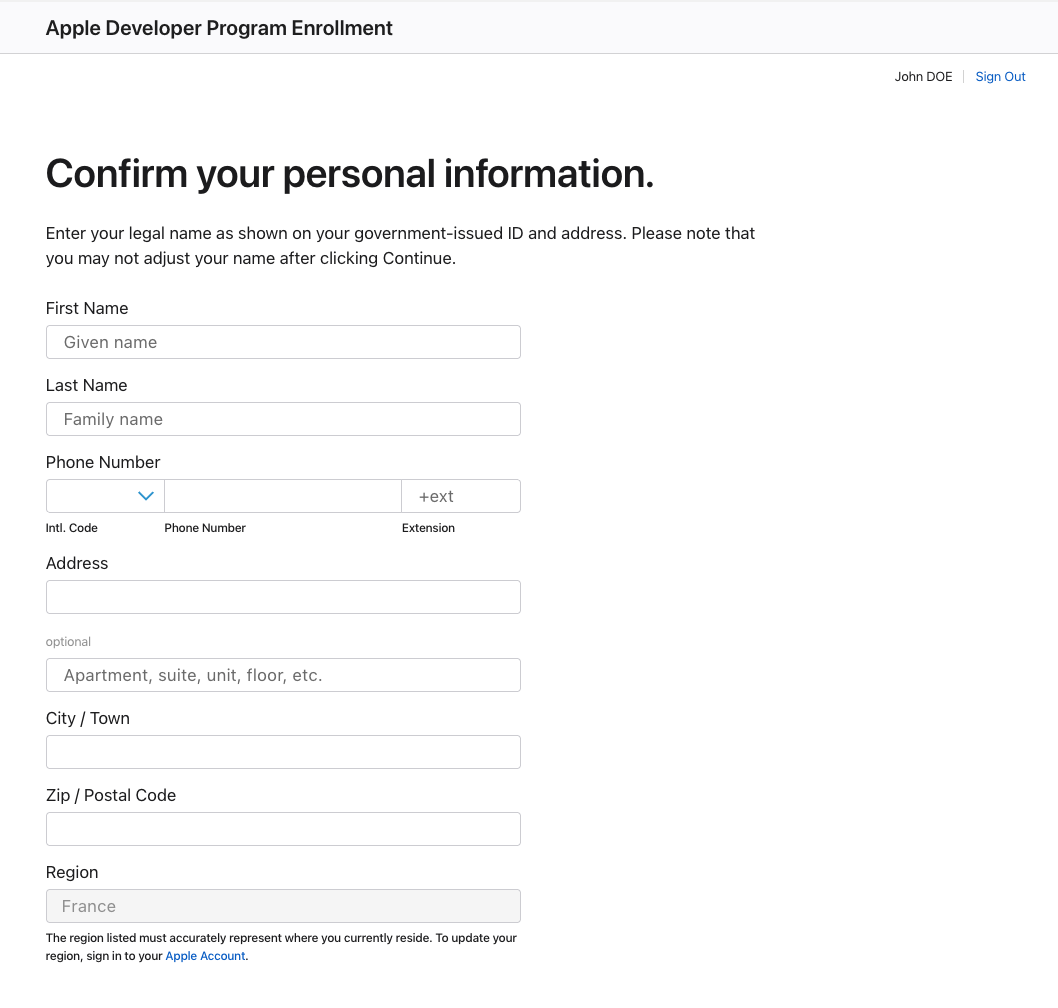
Enter your legal name as it appears on your ID, a phone number where Apple can reach you, and your address. Check them before you submit: they are tied to your contract with Apple, and any later change goes through a verified request with supporting documents.
5. Enter your company details
Choose Organization, then enter the D-U-N-S number, legal name, website and your job title. Type the legal name exactly as it appears in the D-U-N-S record, including accents and abbreviations.
6. Accept the agreement and pay
Once your company is verified, Apple asks you to accept the Apple Developer Program License Agreement and pay the membership fee. A welcome email confirms that the account is active.
7. Give Prestafy access
If Prestafy publishes your app, invite the address shown in your Prestafy account (Accounts & services) with the Admin role, from App Store Connect under Users and Access. You remain the Account Holder, and we never need your password.
Mistakes that delay your account
A legal name written differently in the D-U-N-S record and in Apple's form.
A gmail.com email address, or a website on a different domain from the company's.
A director's personal Apple Account used as the Account Holder.
A sole trader enrolling as an organisation: Apple expects a company and rejects the request.
What comes next?
Once the account is open, you still need to prepare the app, its store listing and its data disclosures, then submit it for Apple's review. Our guide to publishing on the App Store and Google Play covers these steps. For Android, see how to create a Google Play Developer account.
With Prestafy, which turns a PrestaShop store into a mobile app, you open this account and invite us: we prepare the app and submit it to Apple once you have approved its listing.