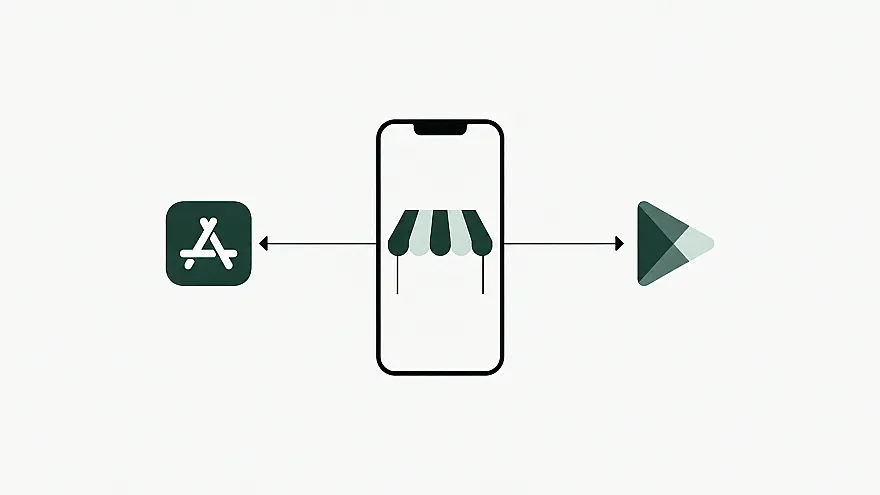
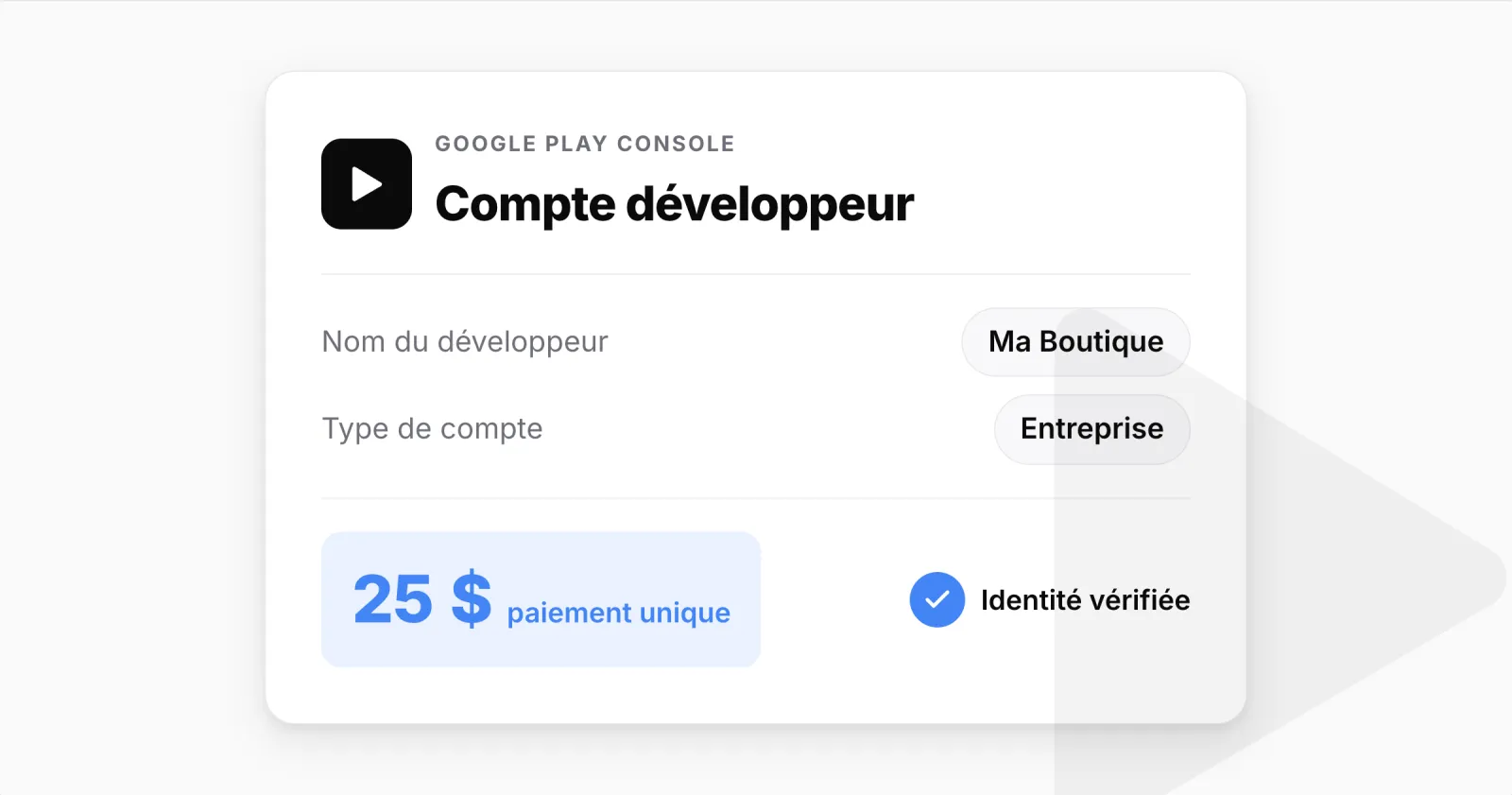
To publish an app on Google Play, you need a developer account in the Play Console. Registration costs 25 USD, paid once. For a company, Google asks for a D-U-N-S number and a website: if the number already exists, verification takes a few days; if it has to be created, Google warns that this can take up to 30 days.
Organisation account or personal account
When you sign up, Google asks you to choose an account type. This choice determines the checks you go through and the name shown on your Google Play listing.
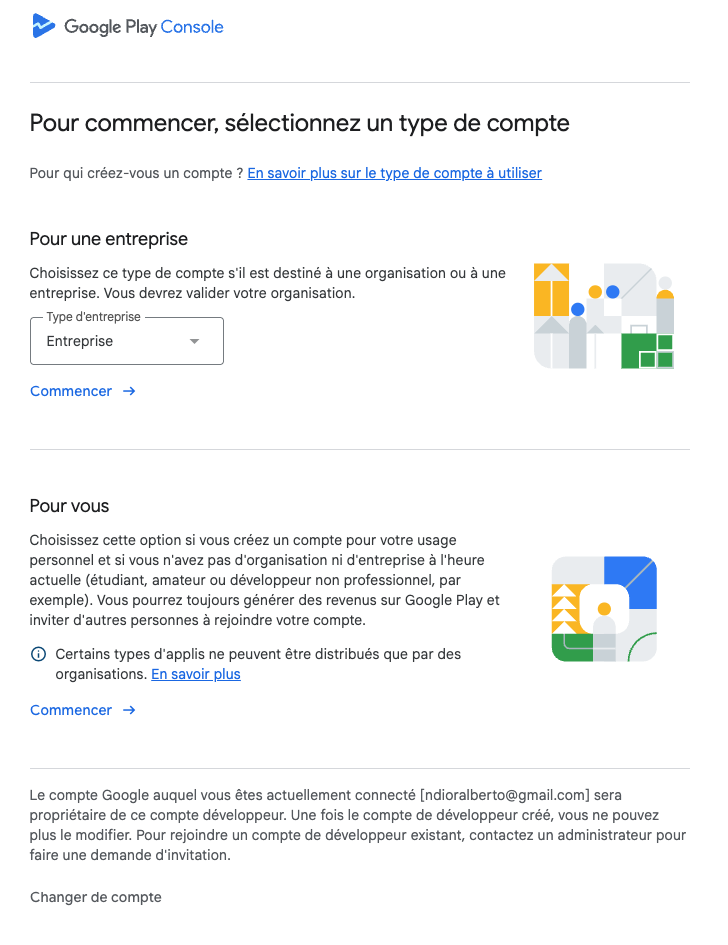
Organisation: the app is published under your company's name. This is the choice for a store run by a company. Google asks for a D-U-N-S number and a website, and checks that the company's name and address match its Dun & Bradstreet record.
Personal: the app is published under your own name. Personal accounts created after 13 November 2023 must have the app tested by at least 12 testers, opted in to a closed test for 14 consecutive days, before it can be published. They must also verify access to an Android device through the Play Console app.
What Google requires for an organisation account
A Google Account controlled by the company, ideally on your own domain (contact@your-store.com).
A Google payments profile in the company's name, with its D-U-N-S number, legal name and address matching the Dun & Bradstreet record.
The company's phone number and website.
A contact name, email address and phone number, so Google can reach you.
A developer email address and phone number, shown publicly on your Google Play listing.
Each email address and phone number is verified with a one-time code. Google also verifies a payment method if you sell apps or digital content on Google Play; a store that sells physical products through its own checkout is not affected.
How much it costs and how long it takes
Cost: 25 USD, paid once, with no renewal, by credit or debit card (prepaid cards are not accepted).
Timing: a few days of verification if your D-U-N-S number already exists; up to 30 more days if it has to be created.
Opening the account, step by step
1. Start from a company Google Account
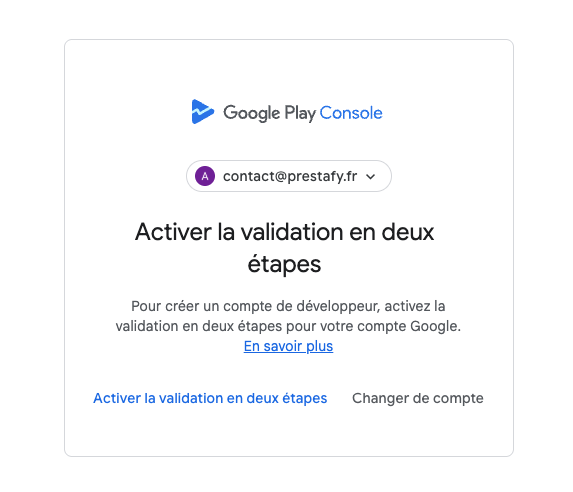
Go to play.google.com/console/signup with a Google Account the company will keep for the long term. If Google asks you to turn on 2-Step Verification, do so, then go back to the sign-up page yourself: Google does not always take you back there.
2. Check your D-U-N-S number
Look up your company on Dun & Bradstreet's UPIK service. Many companies already have a number. If yours does not, request one from Dun & Bradstreet free of charge, and factor in the delay before you set a launch date.
3. Choose the "Organisation" account type
4. Enter your company's identity
In the payments profile, enter the legal name, address and D-U-N-S number exactly as they appear in the Dun & Bradstreet record. A single spelling difference is enough to block verification.
5. Complete your contact details
Enter the developer name (your brand, as shown on Google Play), the contact details reserved for Google, the public email address and phone number, and your website. Verify each email address and phone number with the code you receive.
6. Accept the agreement and pay the 25 USD fee
Read and accept the Google Play Developer Distribution Agreement, then pay by card.
7. Follow verification, then give Prestafy access
Google verifies your company's identity before anything can be published; progress is shown in the Play Console. Once the account is ready, if Prestafy publishes your app, invite the address shown in your Prestafy account with the Admin role, from Users and permissions. You remain the account owner.
Mistakes that block verification
A legal name or address that differs between the payments profile and the Dun & Bradstreet record.
An employee's personal Google Account, which is hard to recover if they leave.
A developer name that differs from the brand your customers know.
A personal account chosen by mistake, which then requires the 14-day closed test.
If verification fails, Google gives the reason in the Play Console. Correct the information it points to or contact Google support; do not create a new account to get around a rejection.
What comes next?
Once the account is verified, you still need to prepare the app, its store listing and its data safety form, then submit it for Google's review. Our guide to publishing on the App Store and Google Play covers these steps. For iOS, see how to create an Apple Developer account.
With Prestafy, which turns a PrestaShop store into a mobile app, you open this account and invite us: we prepare the app and submit it to Google once you have approved its listing.