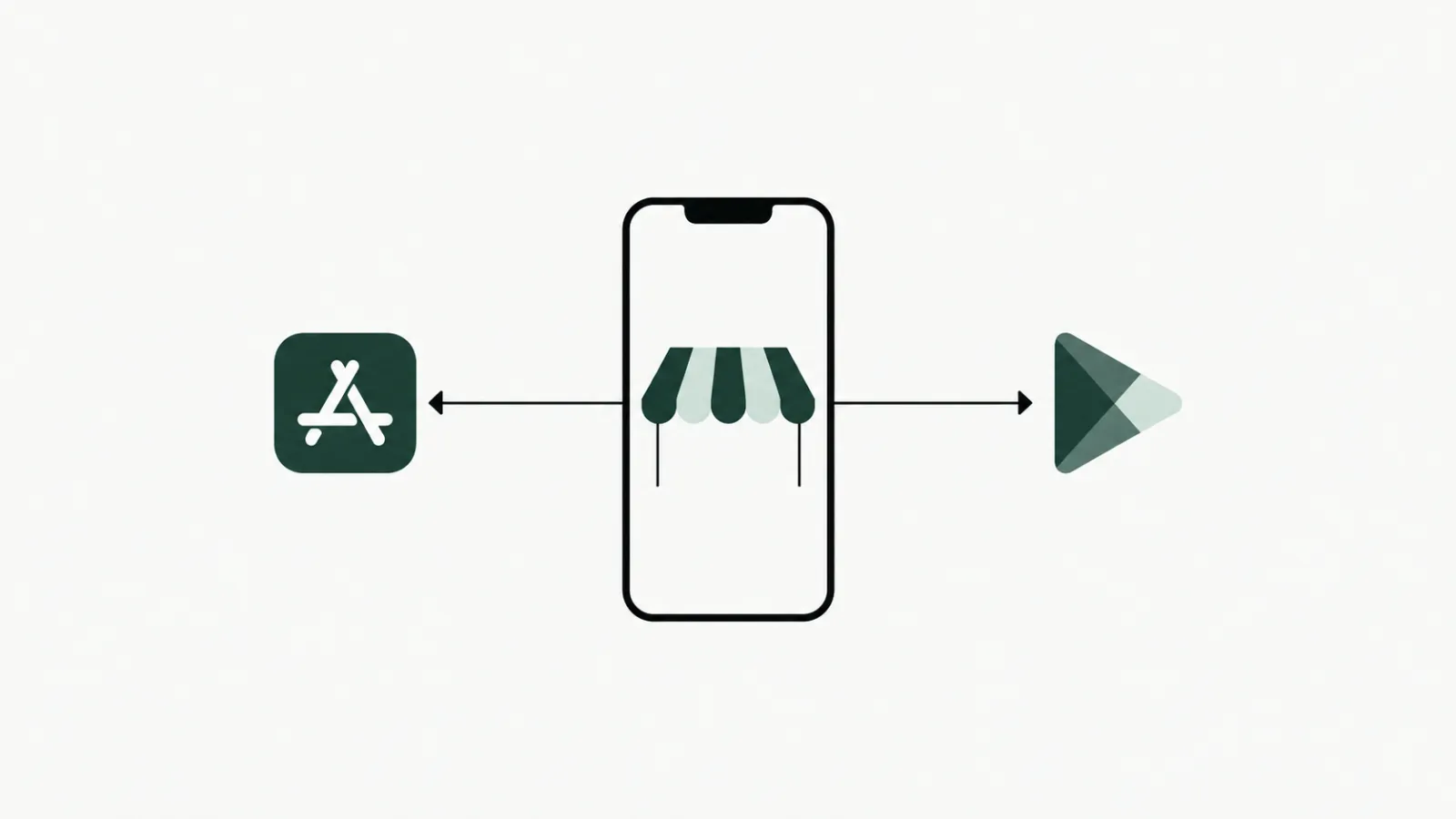
To publish an app on the App Store and Google Play, you need a developer account on each store, a signed build, a complete store listing with a declaration of the data you collect, and you have to pass each store's review. Once the accounts are open, going live takes days. Opening the accounts is what takes longest, so start there.
The two stores at a glance
| Item | App Store (Apple) | Google Play |
|---|---|---|
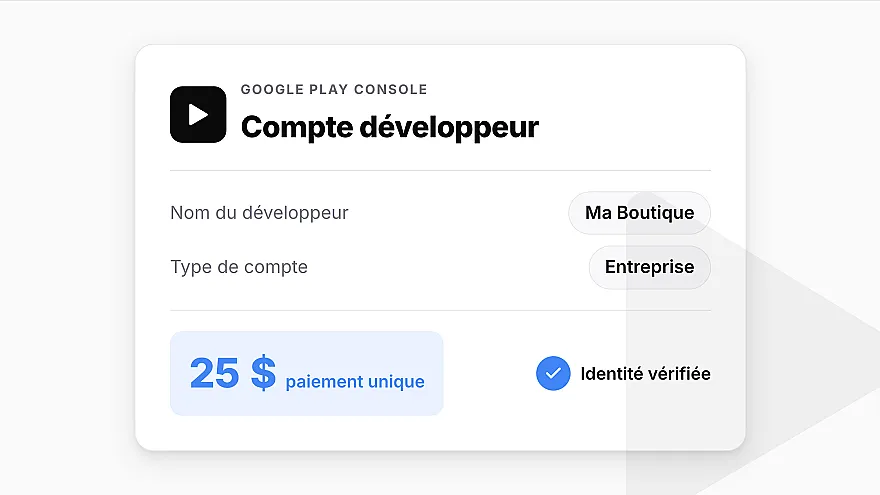
| Developer account | 99 USD a year | 25 USD, paid once |
| Company | D-U-N-S number, website and email on the company's domain | D-U-N-S number and website |
| Review | Half of submissions in under 24 hours, 90% in under 48 hours | A few days, up to 7 days or longer in some cases |
| Data declaration | "App Privacy" in App Store Connect | "Data safety" section in the Play Console |
On Google Play, a personal account created after 13 November 2023 must also have the app tested by at least 12 testers for 14 days before publishing. Organisation accounts are not affected.
Step 1: Open your developer accounts
Each store has its own account, process and checks. For a company, both ask for a D-U-N-S number registered to the exact legal entity.
Allow a few days if your D-U-N-S number already exists, longer if it has to be created.
Step 2: Produce the signed build
You cannot send an app to a store "as is". You need a compiled, signed file: an .ipa for iOS and an .aab (Android App Bundle) for Android.
iOS: a distribution certificate and a provisioning profile, created from your Apple account.
Android: a signing key, with Play App Signing turned on.
A signing error prevents the file or its updates from being uploaded, and it is hard to diagnose without experience.
Step 3: Write the store listing
The listing is what your customers see before installing the app. The fields differ between the two stores.
App Store: name, subtitle, description, keywords, screenshots for each required device size, a support URL (which must lead to real contact details) and a privacy policy URL.
Google Play: name, short description (80 characters), full description, icon, feature graphic (1024 × 500 pixels), screenshots, category, contact details and privacy policy URL.
Both stores also require an age rating, based on a questionnaire. Accurate screenshots and a clear description help your customers recognise your store; this work on the listing is known as ASO (App Store Optimisation).
Step 4: Declare the data you collect
Apple and Google require a declaration of the data your app collects and how it is used, including data collected by third-party services built into the app (analytics, notifications). It is mandatory even for an app that collects nothing, and it must be backed by a public privacy policy.
Apple: the "App Privacy" section in App Store Connect, required for every new app and every update.
Google: the "Data safety" section in the Play Console.
Step 5: Submit for review
Once the build and the listing are ready, you submit the app for each store's review.
Apple reviews at least half of submissions in under 24 hours and 90% in under 48 hours. An incomplete submission takes longer.
Google usually responds within a few days. Some reviews take up to 7 days, or longer in exceptional cases.
Among the rejection reasons Apple highlights: an app that crashes or contains placeholder content, broken links, missing review information (such as a demo account), screenshots that do not show the real app, or an app that simply repackages a website. If your app is rejected, the store explains why: you fix the issue and submit again.
How much time and money does it take?
Store fees: 99 USD a year for Apple and 25 USD once for Google, about 124 USD in the first year. These fees are paid to the stores, on top of the tool that builds and publishes your app.
Timing: mostly opening the accounts and, for a company, obtaining a D-U-N-S number. Once the accounts are ready, publishing takes days.
Before you submit: a checklist
Your Apple and Google accounts are open and verified.
The name, icon and screenshots match your brand and the real app.
Your privacy policy is online and its URL is entered in both stores.
The data declarations are complete and consistent with your privacy policy.
The support URL leads to your contact details.
If part of the app requires signing in, a demo account is provided to the review teams.
What Prestafy does for you
With Prestafy, which turns a PrestaShop store into a mobile app, building, signing, preparing the listings and submitting the app are handled for you. You open your developer accounts and invite us as an administrator; you provide your brand assets and privacy policy, then approve the listings before they are submitted.