A mobile app creates a direct channel between your PrestaShop store and your customers. A push notification can confirm an order, remind someone about a cart, announce that an item is back in stock or introduce a new offer. It works when the message is relevant, the customer has agreed to receive it and the timing is right.
Prestafy brings audiences, campaigns, automations and reports together in one place. Order status notifications are included from the Basic plan; segmented and scheduled campaigns and advanced automations (abandoned cart, back in stock, loyalty) from the Advanced plan. See the pricing page for details. This guide takes you from preparing your audience to understanding campaign results.
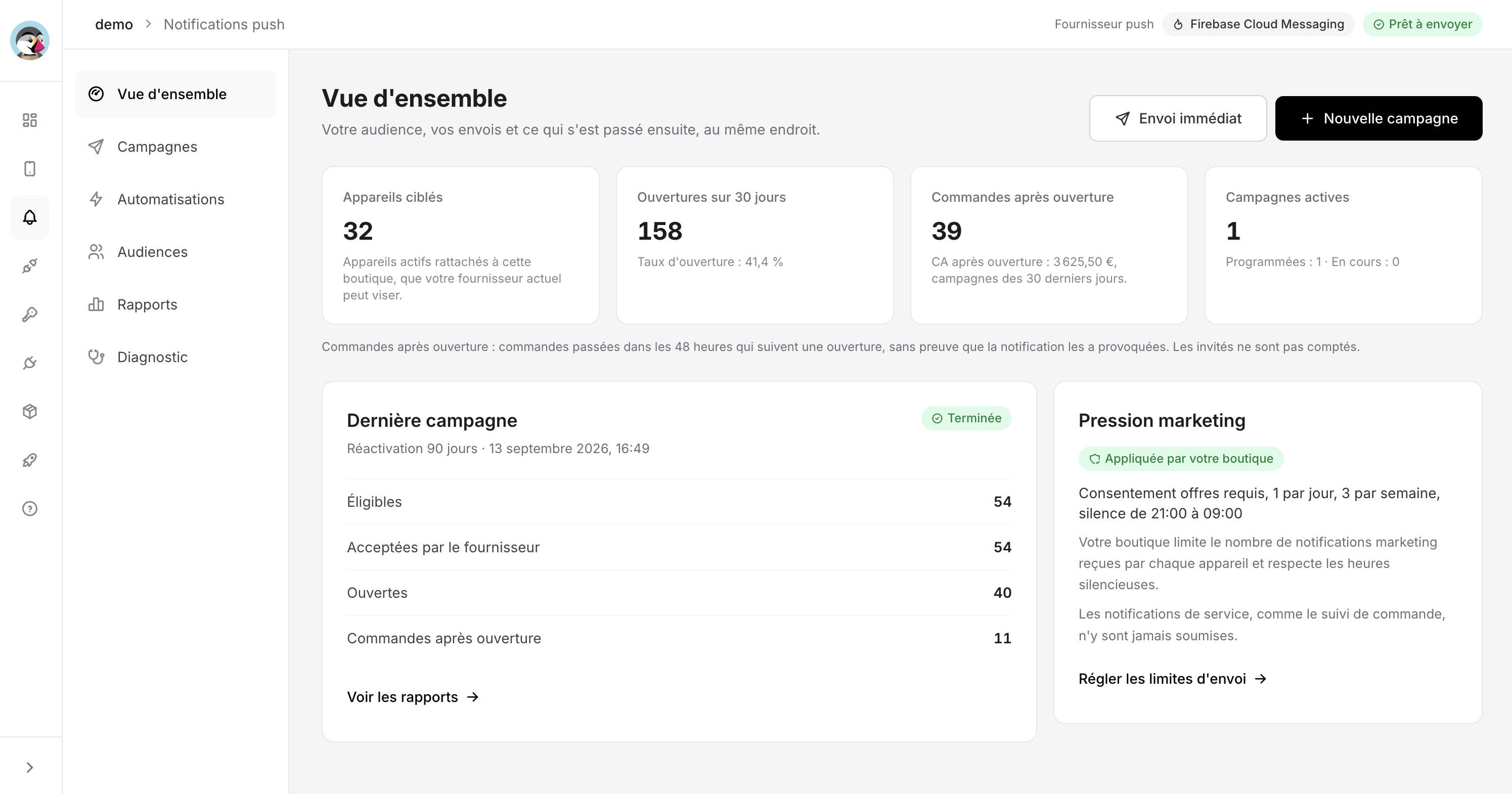
The Notifications centre brings key metrics and primary actions together.
Before you start: permission and marketing consent
Two complementary choices are part of the mobile journey. The operating-system permission allows the app to display notifications on the device. The “Offers and news” consent allows marketing messages. A customer can therefore receive essential order updates while declining promotional communication.
Explain the benefit of each choice in plain language and let users change their preferences from their profile. Before a send, Prestafy takes active, reachable devices and the required consent into account.
1. Build a useful audience
Start with the goal of the notification, then choose the audience. A welcome message should not target the same customers as a reactivation offer.
Depending on your goal, you can address the entire reachable audience, recent subscribers, customers who have been inactive for a given period, a PrestaShop customer group or a saved custom segment. PrestaShop groups come from your store, while Prestafy segments let you combine criteria for a specific campaign.
General announcement: use the reachable audience only when the message genuinely applies to everyone.
Loyalty: target a VIP group or customers who have already placed an order.
Reactivation: isolate inactive customers and tailor the offer.
Welcome: target recent subscribers with a simple, useful message.
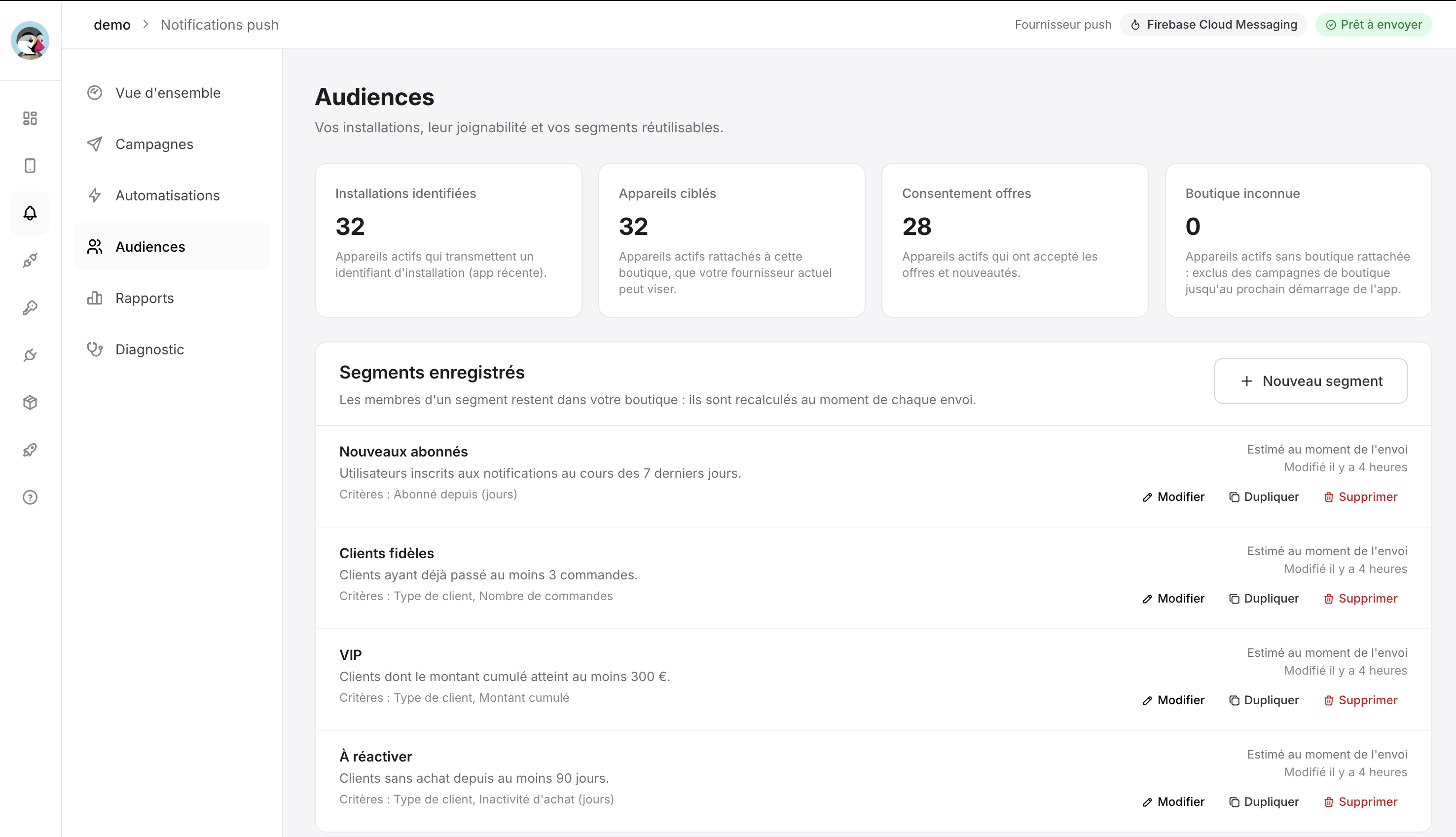
Audiences combine installations, consent, PrestaShop groups and saved segments.
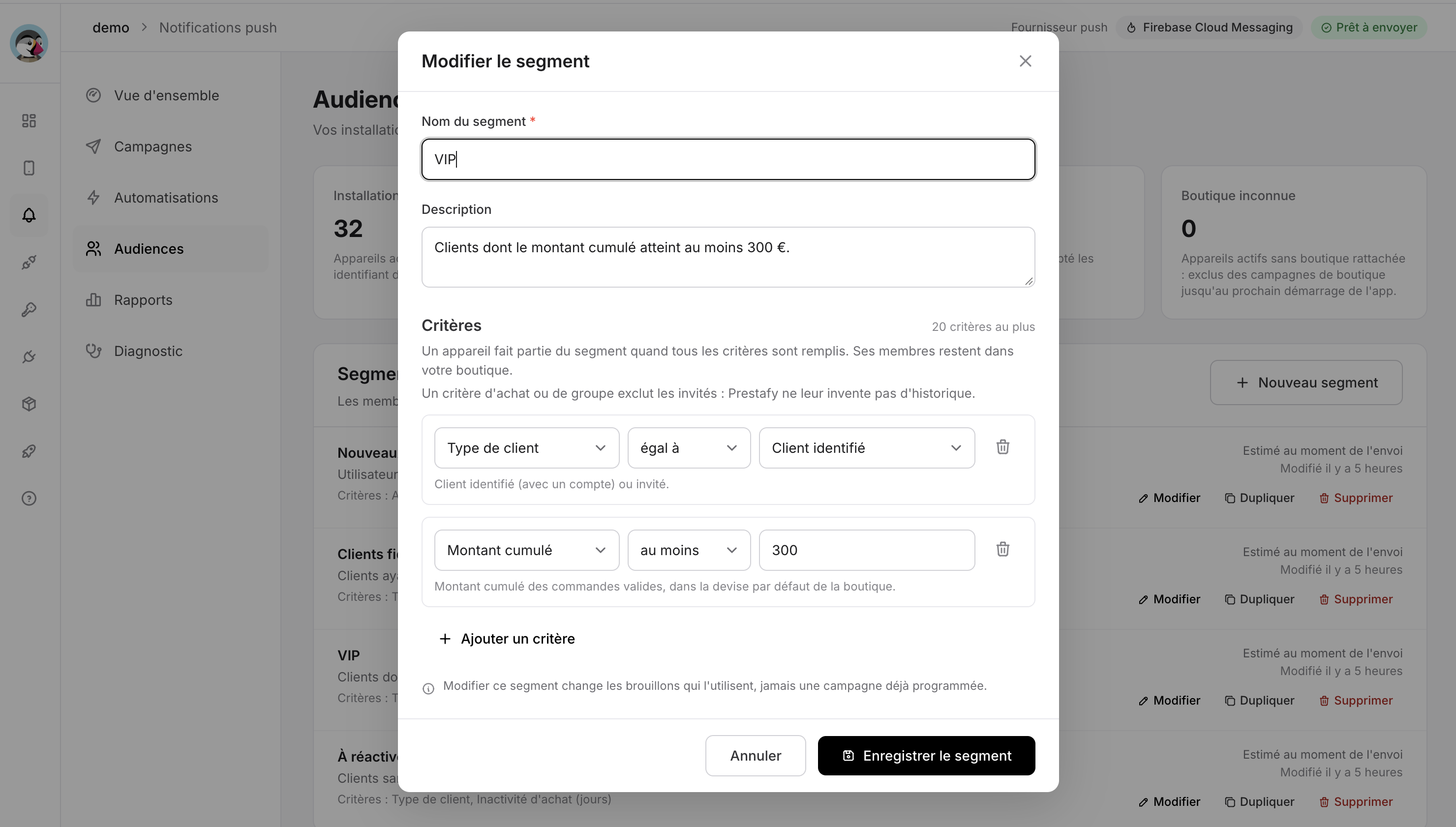
A segment can combine several criteria, such as customer type and total order value.
2. Create and schedule a campaign
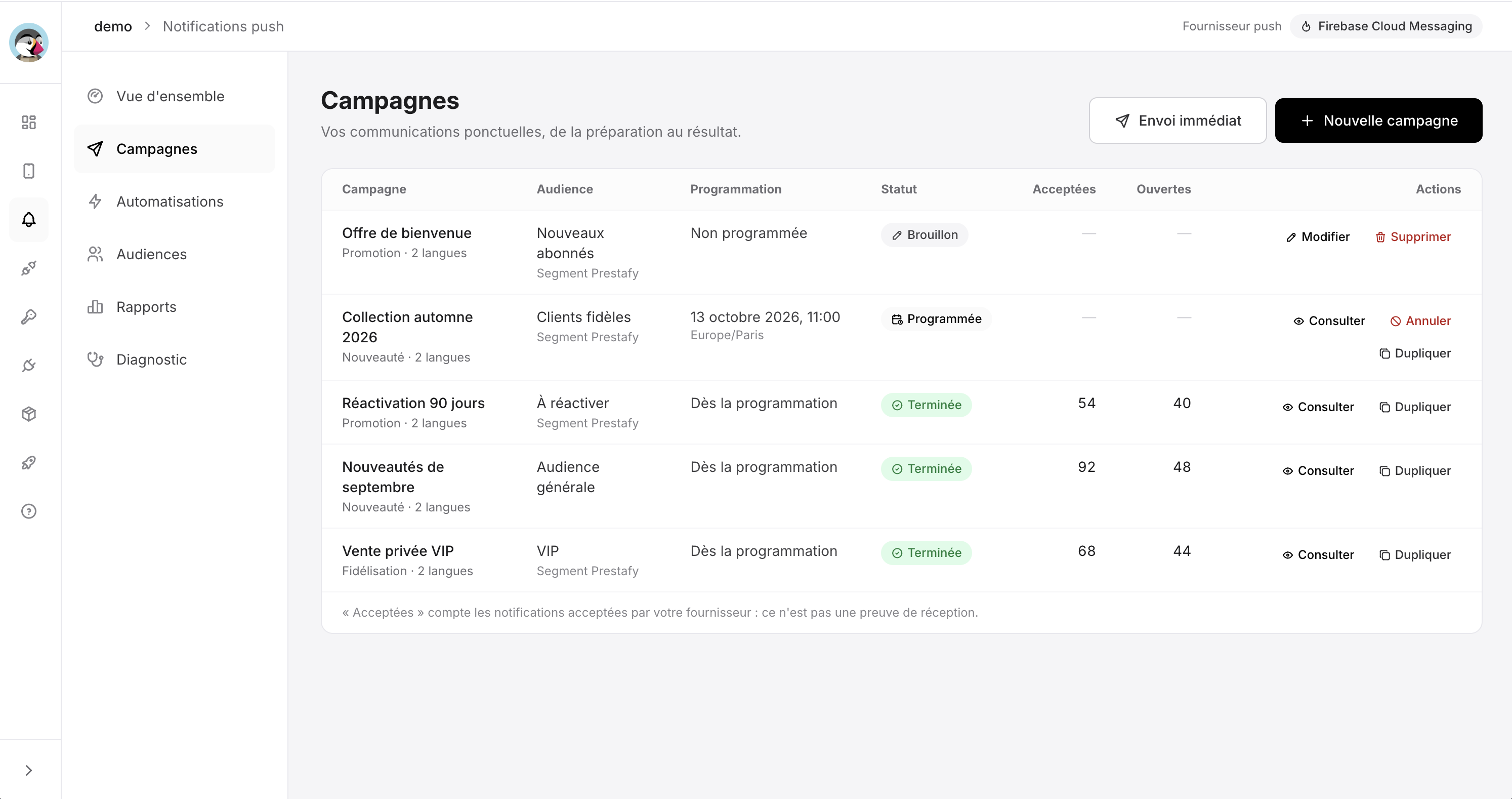
The campaign list shows each audience, schedule, status and result.
Go to Notifications → Campaigns, create a campaign and enter its internal name, customer-facing title and message. Prepare every language available in the app and use the preview to check readability.
Next, choose the destination that opens when the notification is tapped. The deep link can lead to the home screen or to a page type already supported by your app, such as a product, category or collection. The destination should continue the message naturally: a back-in-stock alert should open the relevant product rather than a generic page.
Before the final send, check the estimated audience, send a test to a real device and review every translation. You can launch the campaign immediately or schedule it for a chosen date and time.
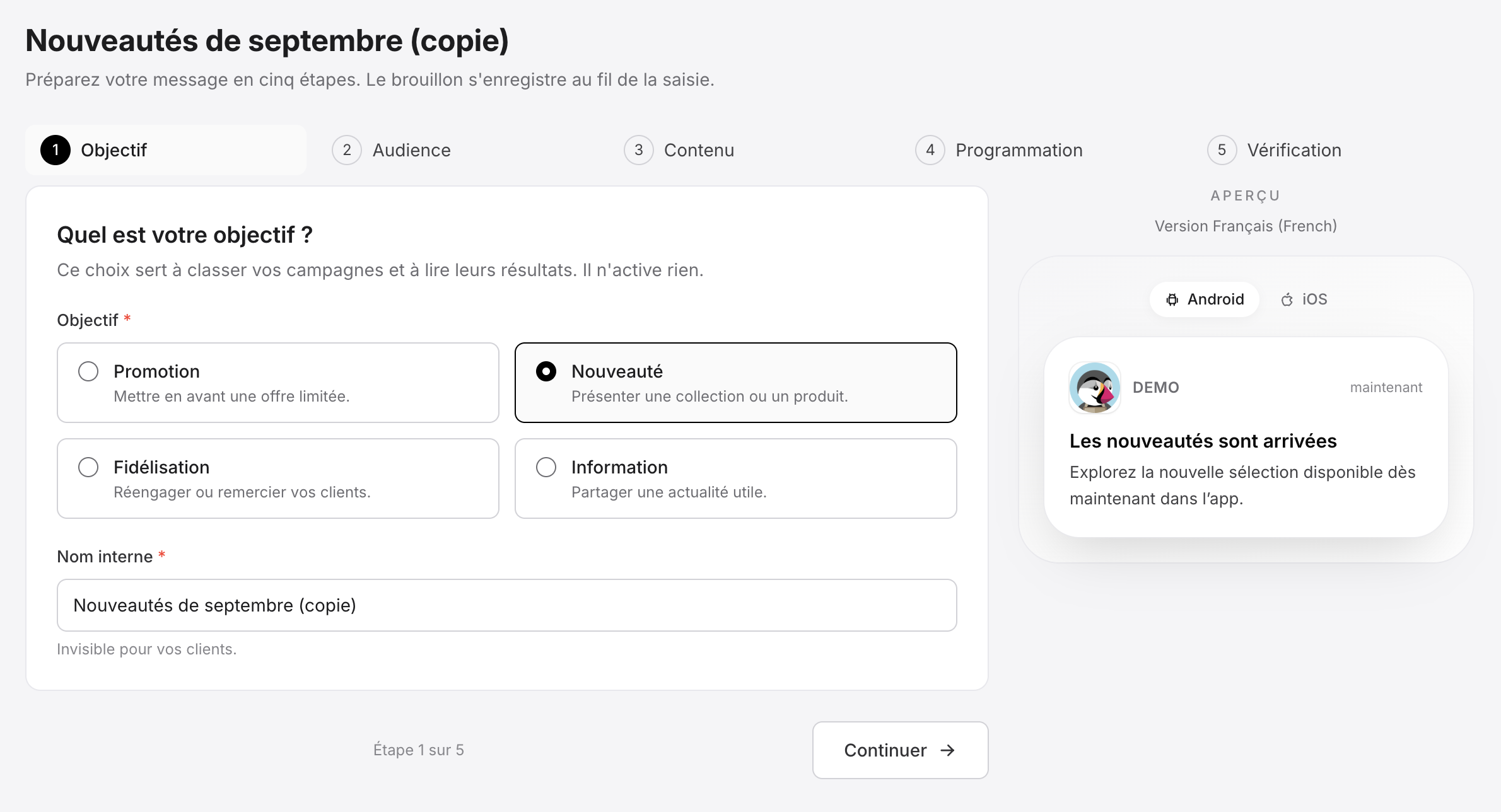
Step 1: define the campaign objective and internal name.
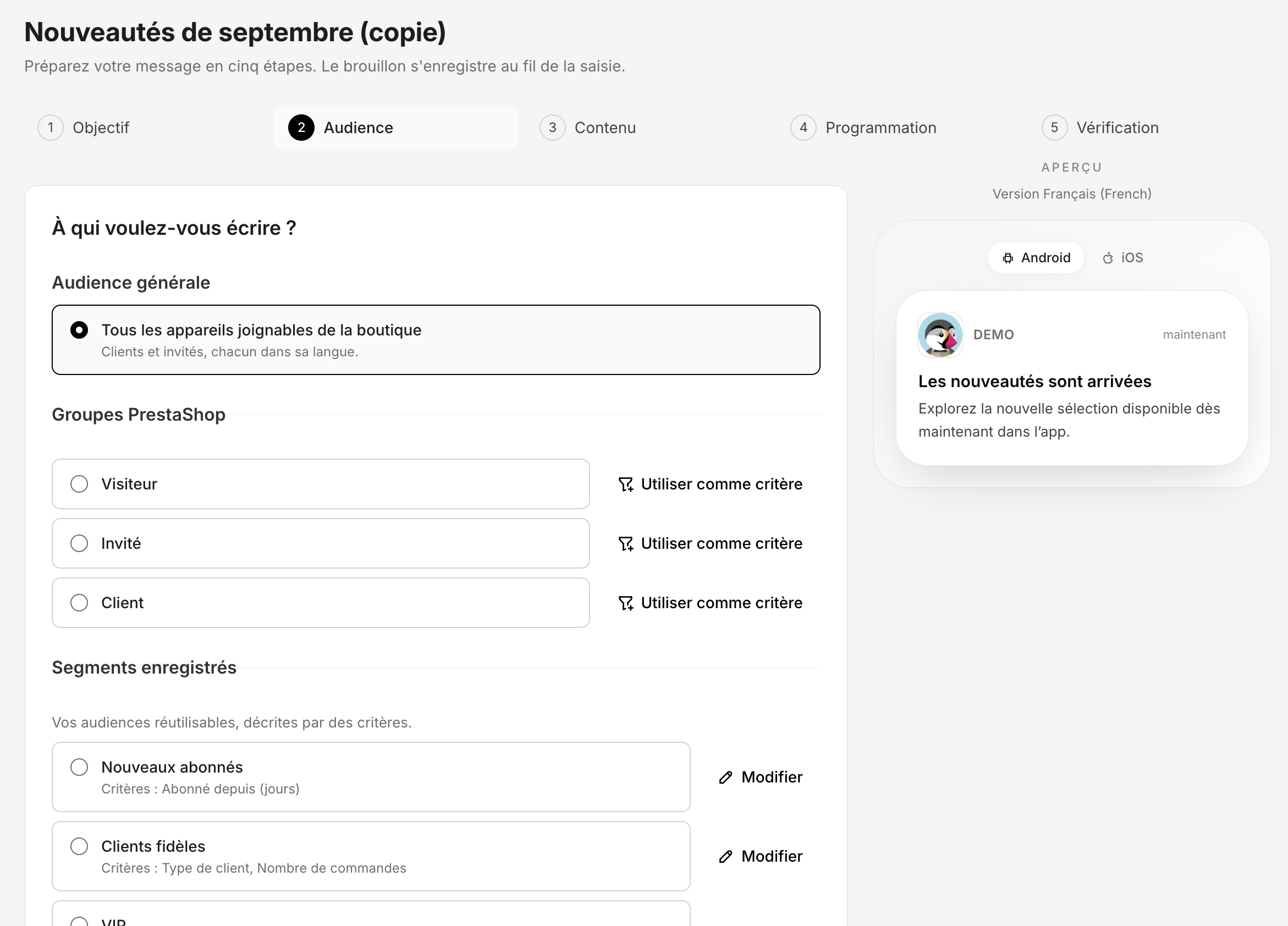
Step 2: choose the general audience, a PrestaShop group or a segment.
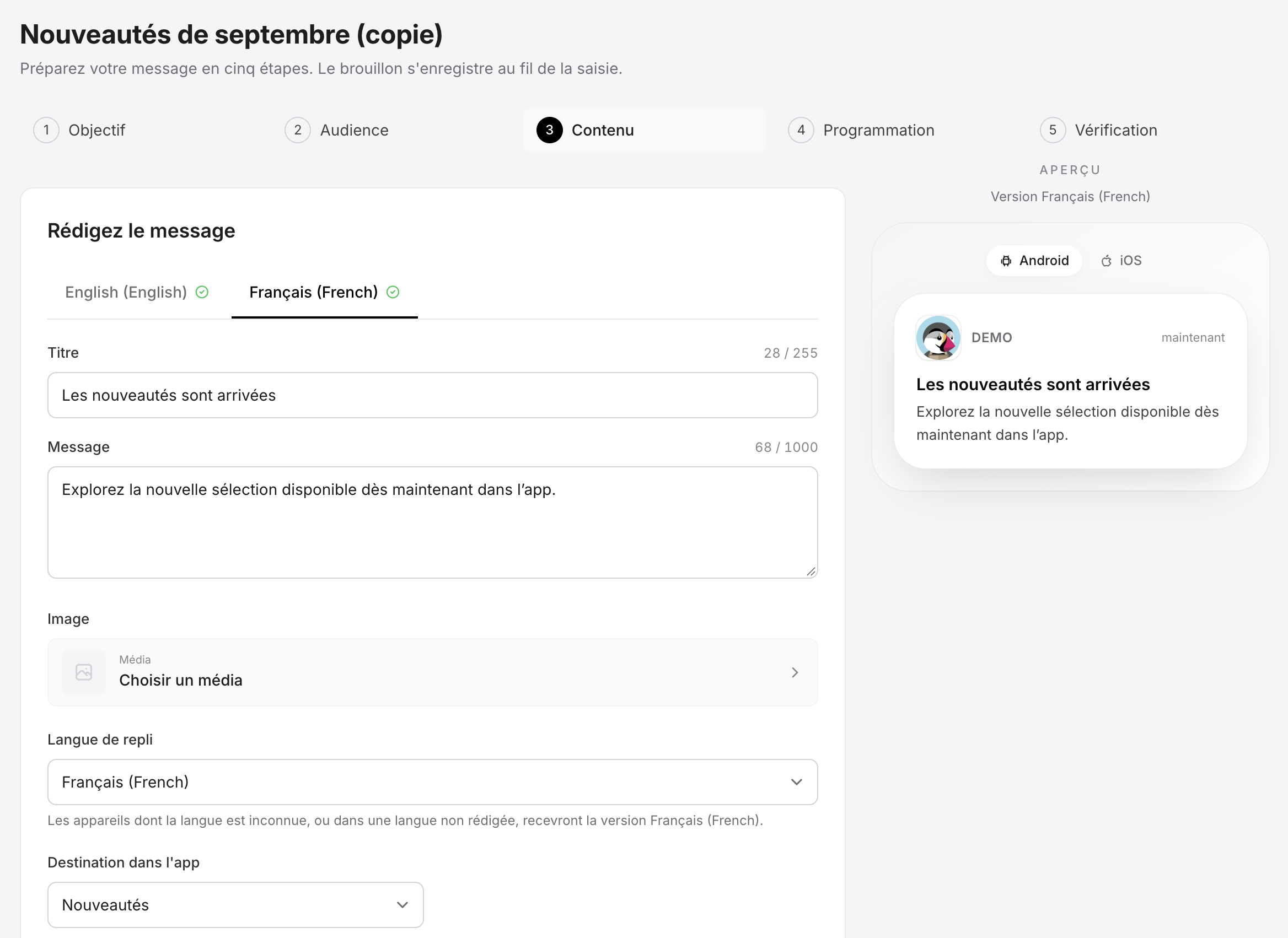
Step 3: write the content for each language and choose the destination.
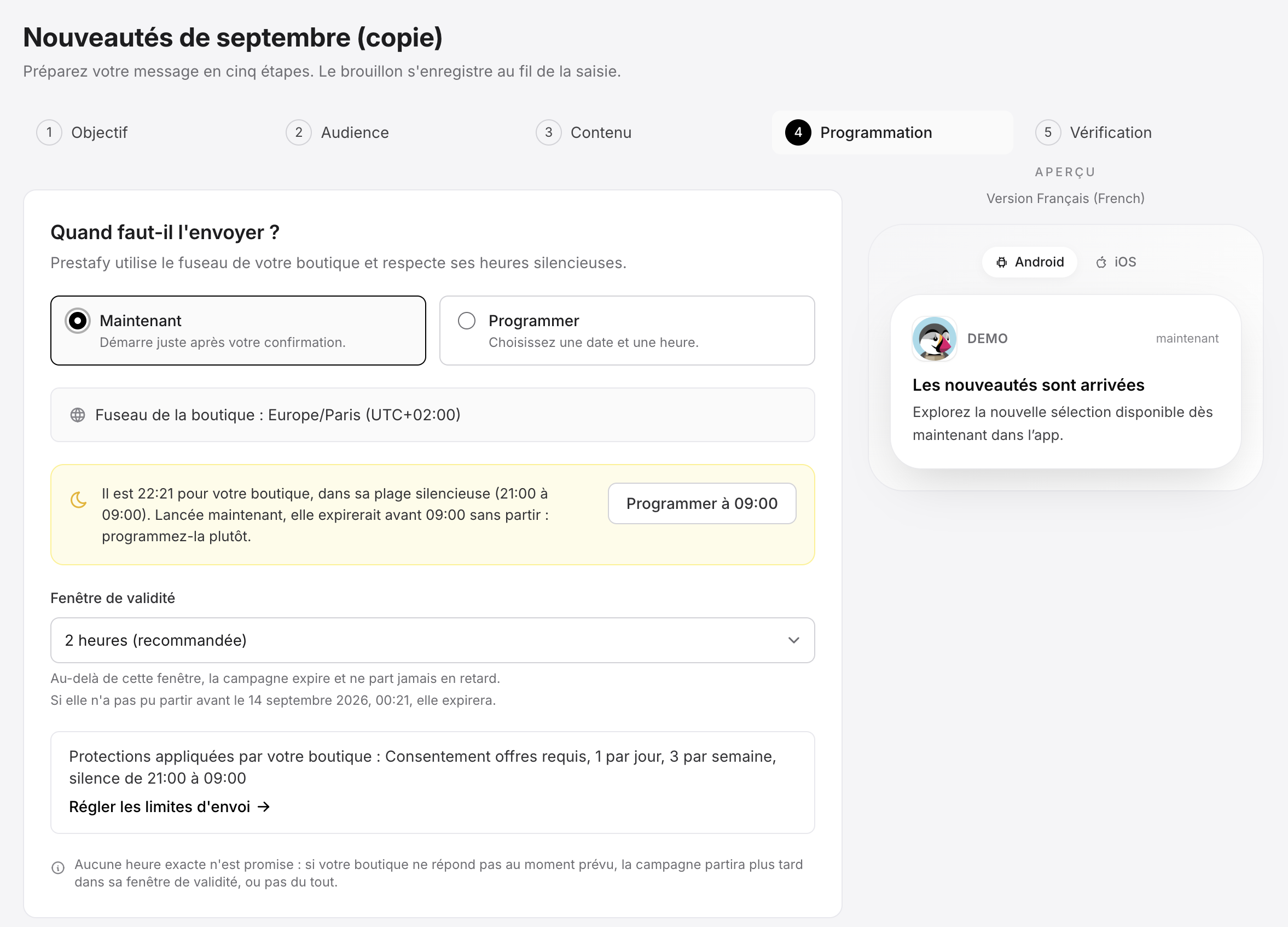
Step 4: schedule the send and review marketing pressure rules.
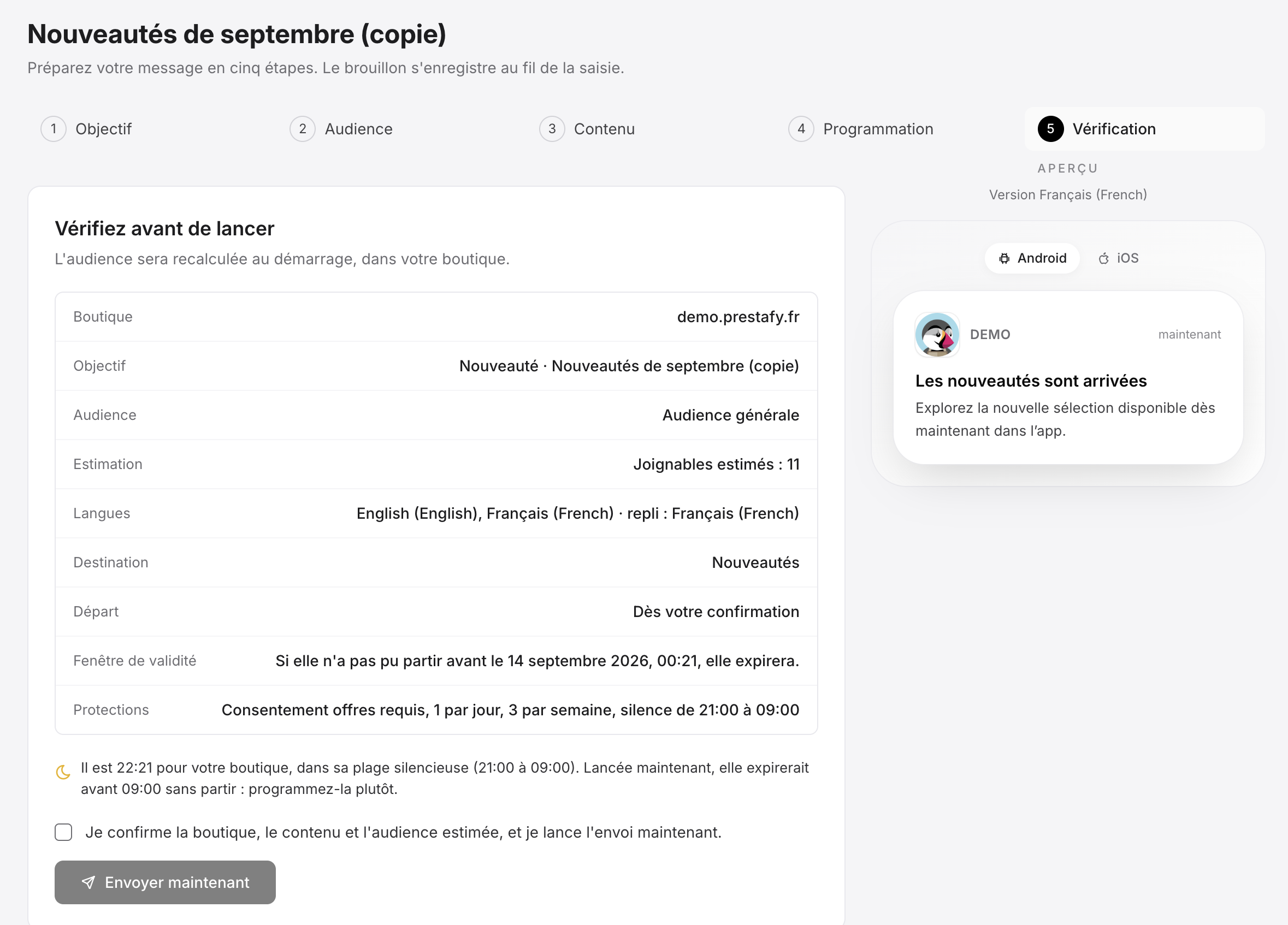
Step 5: review the summary and estimated audience before confirming.
3. Automate key customer moments
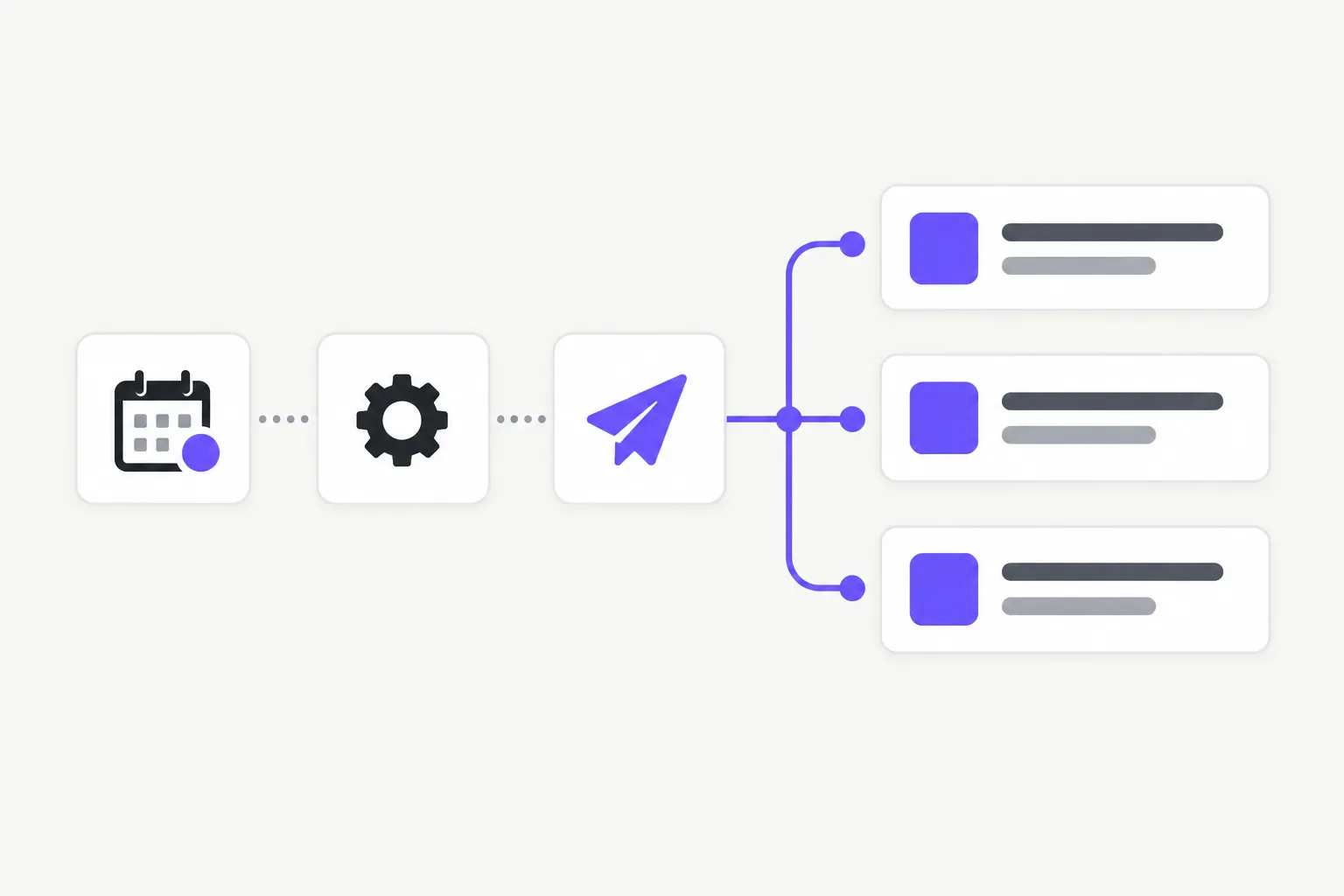
Automations trigger a message from a real store event. They help you react at the right time without manually creating a campaign for every occurrence.
Order status: notify the customer when an order is confirmed, prepared, shipped or delivered.
Abandoned cart: choose the reminder delay and, when it fits your strategy, add a promotional incentive.
Back in stock: alert interested customers as soon as a product becomes available again.
Welcome: greet new subscribers and introduce the benefits of the app.
VIP and loyalty: adapt a message for a customer group or a high-value segment.
Each recipe displays only the settings needed for its trigger. Available variables personalise the message with relevant data, such as the customer’s first name, an order reference or a product. Use only the variables offered in the form so they can be replaced reliably at send time.
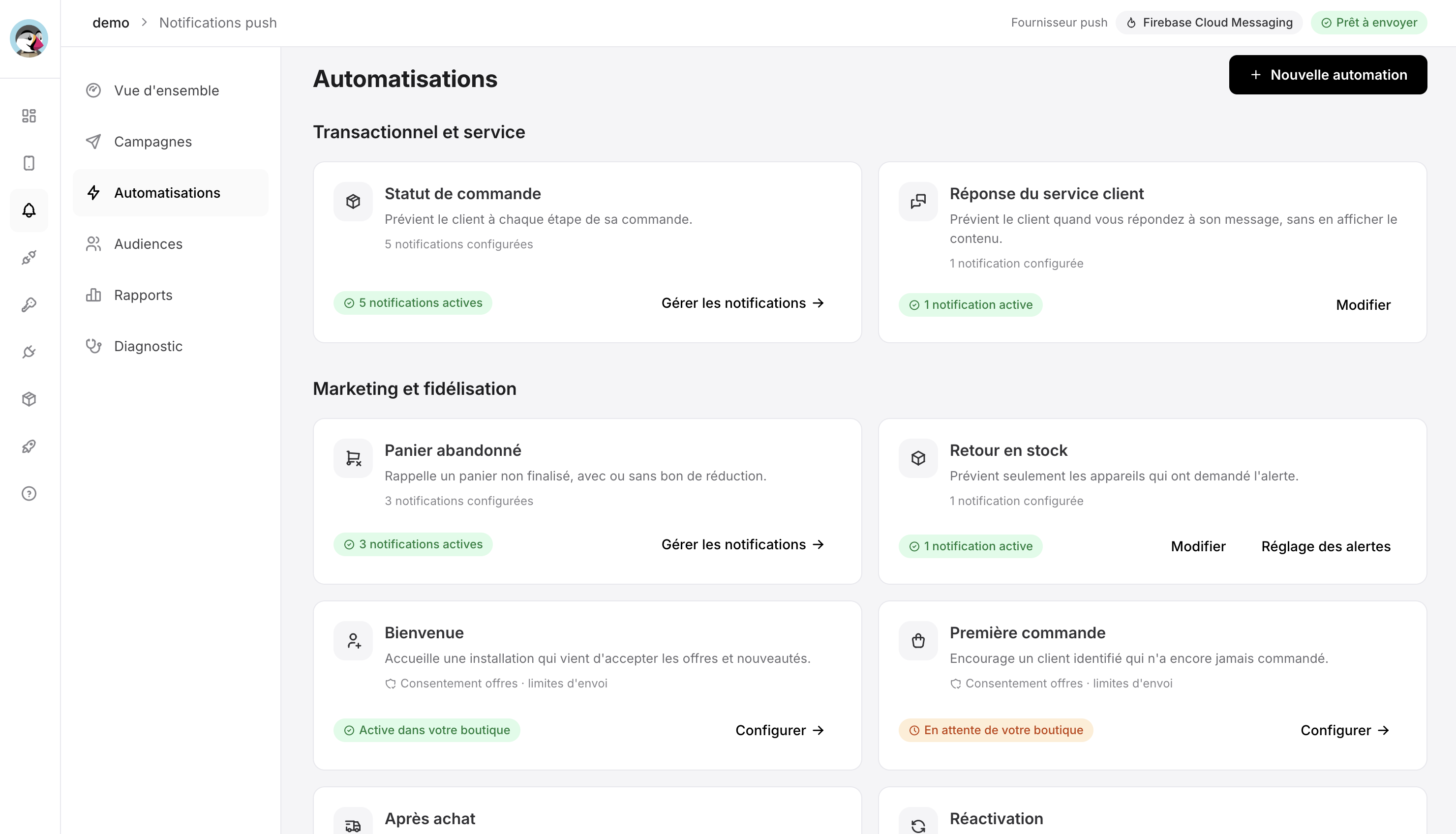
Automations are grouped by service, transactional and marketing use cases.
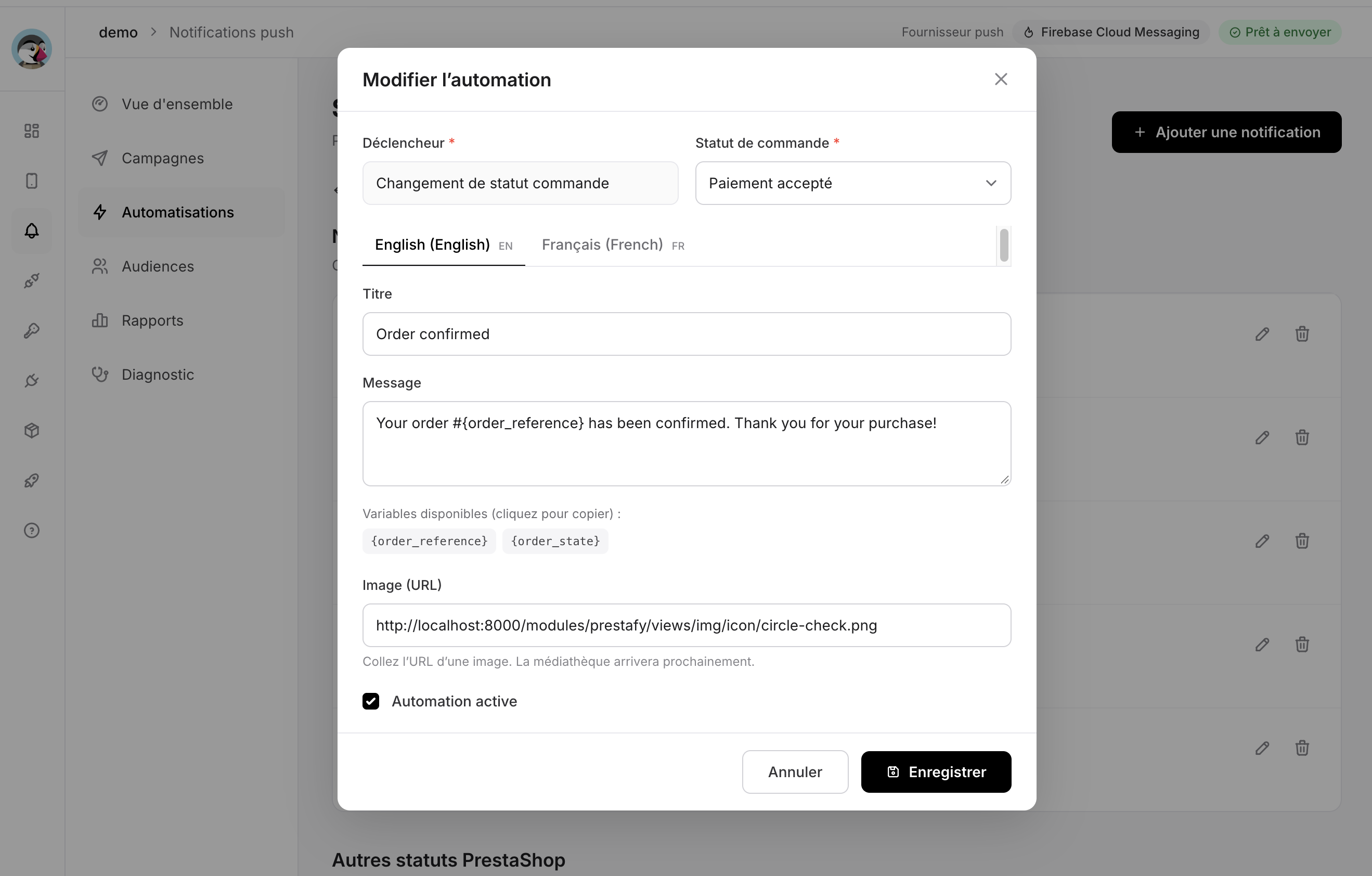
Each form shows the settings and variables available for the selected trigger.
4. Protect attention with marketing pressure controls
One useful notification can build loyalty; a stream of generic messages can lead customers to withdraw consent. Set daily and weekly limits and choose quiet hours that suit your audience. Service notifications related to an order remain separate from this marketing pressure.
Before enabling another automation, check that it will not overlap with a scheduled campaign or another reminder.
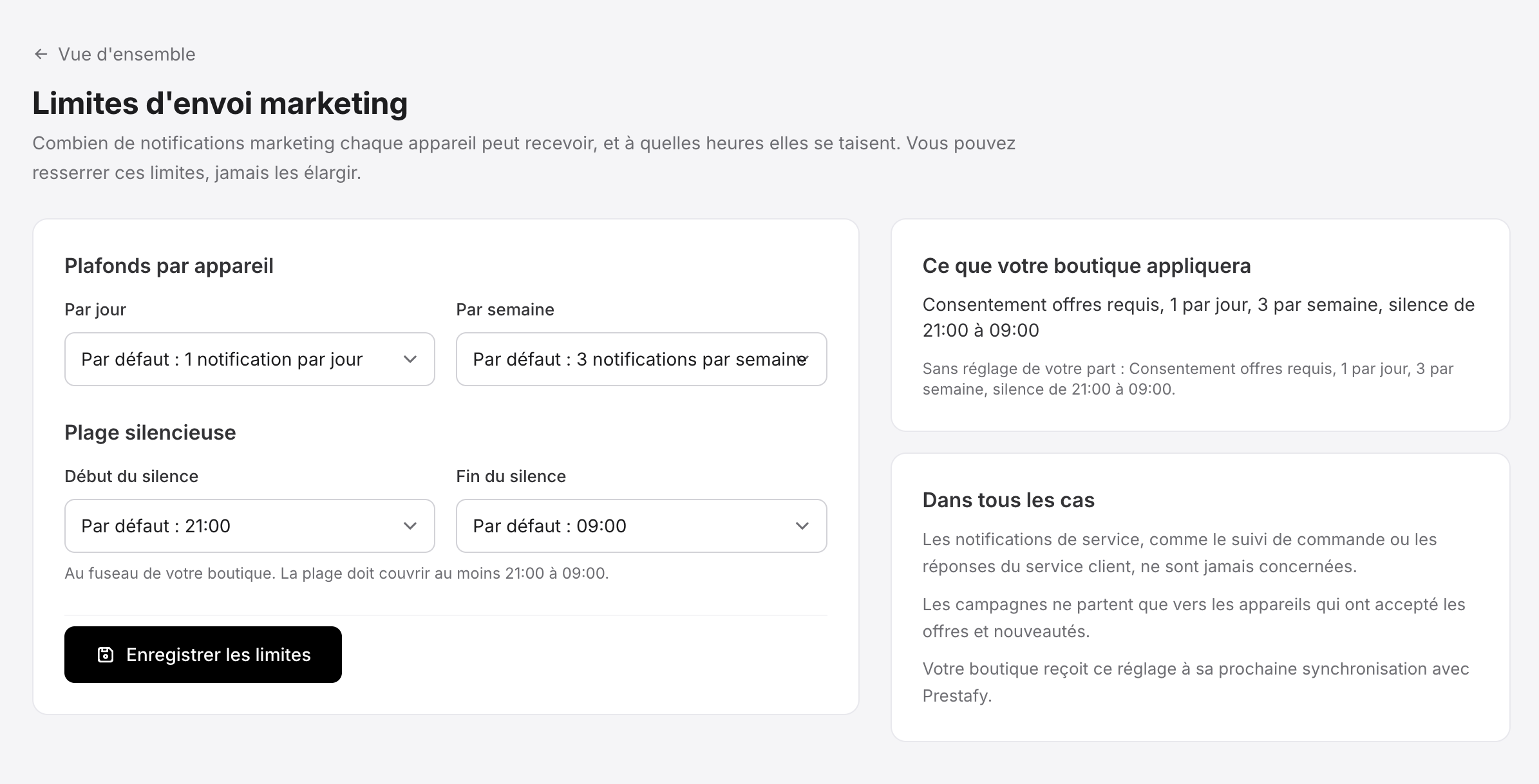
Daily and weekly caps, together with quiet hours, protect each customer’s attention.
5. Read results correctly
Reports cover the main delivery stages: eligible devices, notifications accepted by the provider, recorded opens and orders observed after an open. An open is recorded when the app reports a tap on the notification to Prestafy.
“Orders after open” counts orders placed within the attribution window shown in the interface. It shows which orders followed an open, which helps you compare campaigns, but on its own it does not prove that the notification caused the purchase.
Compare results over time and between campaigns with similar objectives. A high open rate can indicate strong targeting or a clear message, but it should always be read alongside audience size, exclusions and the campaign goal.
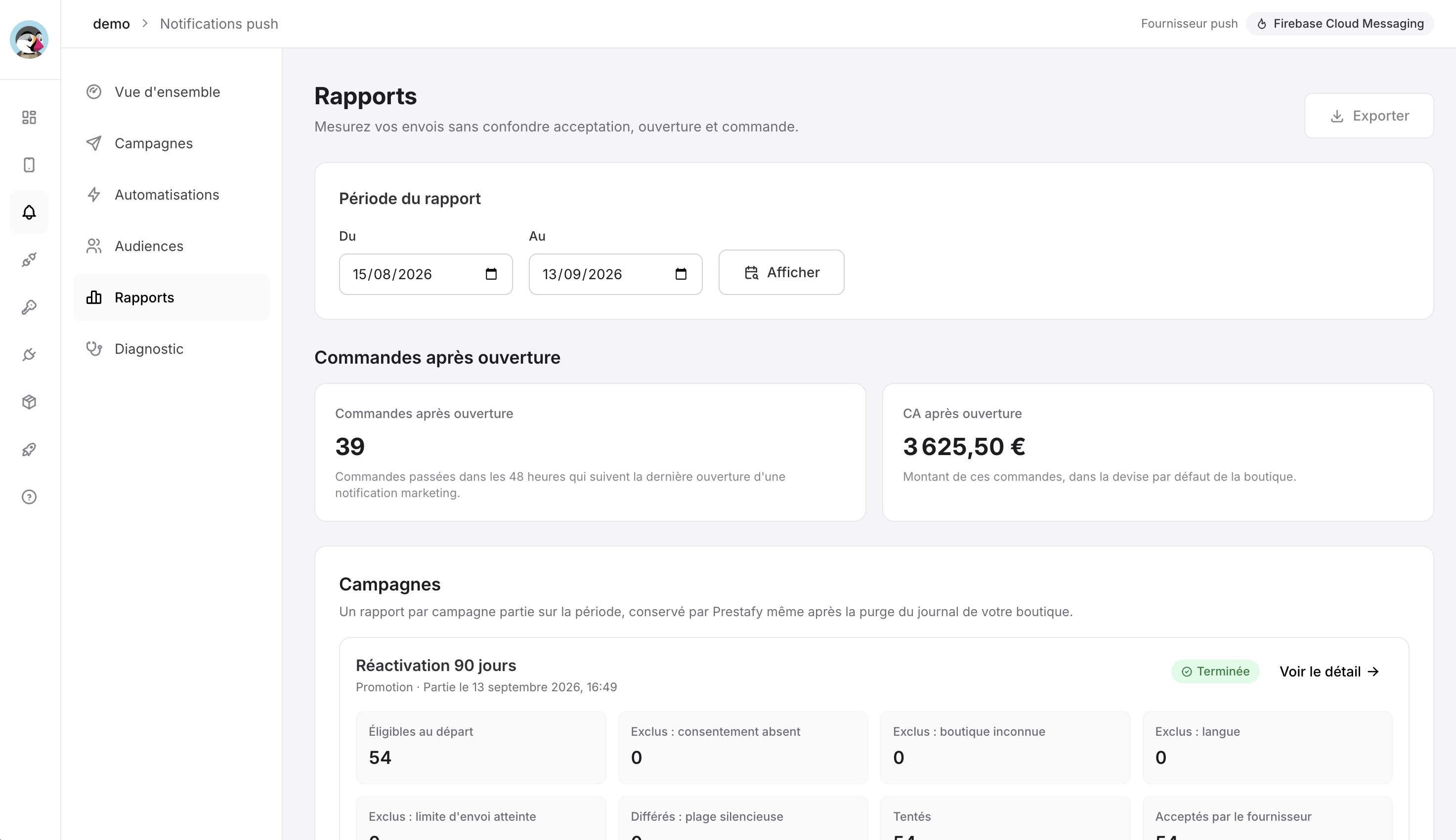
Reports connect delivery, opens and orders observed after an open.
Checklist before your first send
Set one clear, measurable goal.
Choose an audience that is directly concerned by the message.
Write a short title and a promise that makes sense on its own.
Add a relevant in-app destination.
Prepare every required language.
Send a test to a real device and check that it opens correctly.
Review the schedule, sending limits and quiet hours.
Afterwards, analyse delivery, opens and associated orders.
Ready to create your first campaign?
Open your app in Prestafy, go to the Notifications centre and start with a simple audience and a useful message. You can then expand your strategy with segments and automations that match the customer journey.